
Once you have created a workspace, you can set up a free CampaignLark domain to start sending emails quickly without needing to configure your own DNS.
Navigating to Domain Settings
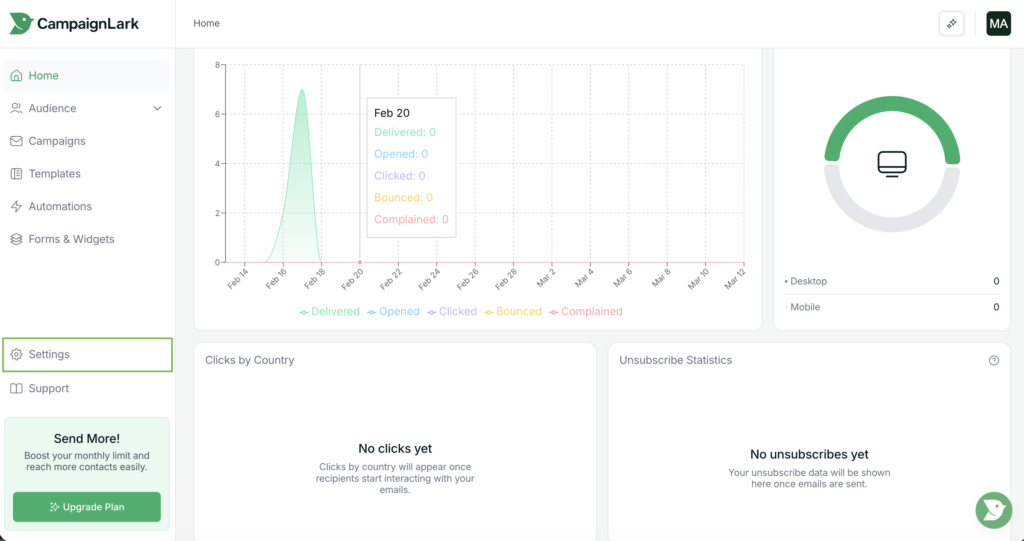
To begin, navigate to the Settings page within your workspace.
You can find this in the left sidebar navigation menu at the bottom of your dashboard. Click Settings to open the workspace configuration panel.
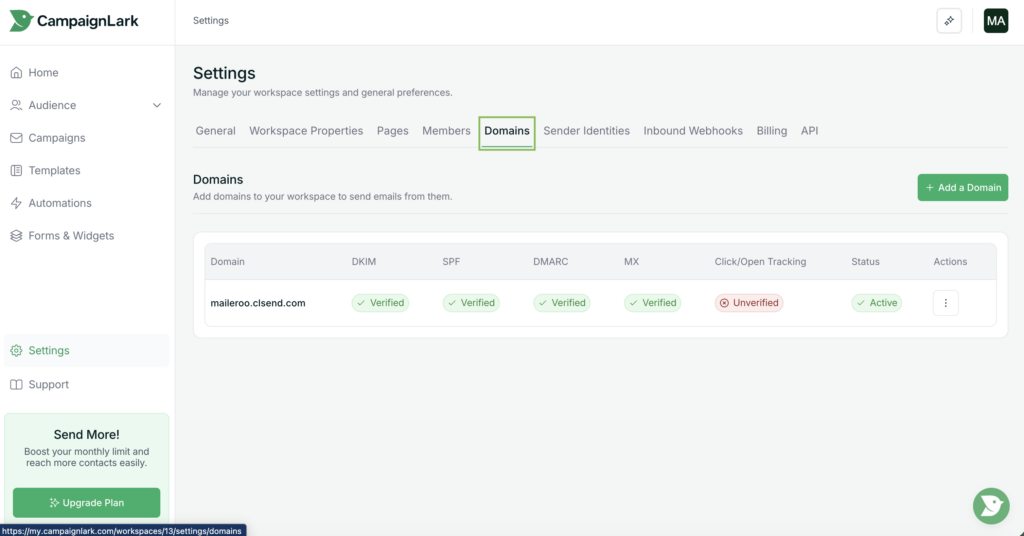
Inside the Settings area, click Domains. This page displays all domains connected to your workspace.
If this is your first time setting up a domain, the list may be empty. This is completely normal.
Adding a Domain
To add a new domain, click the Add a Domain button.
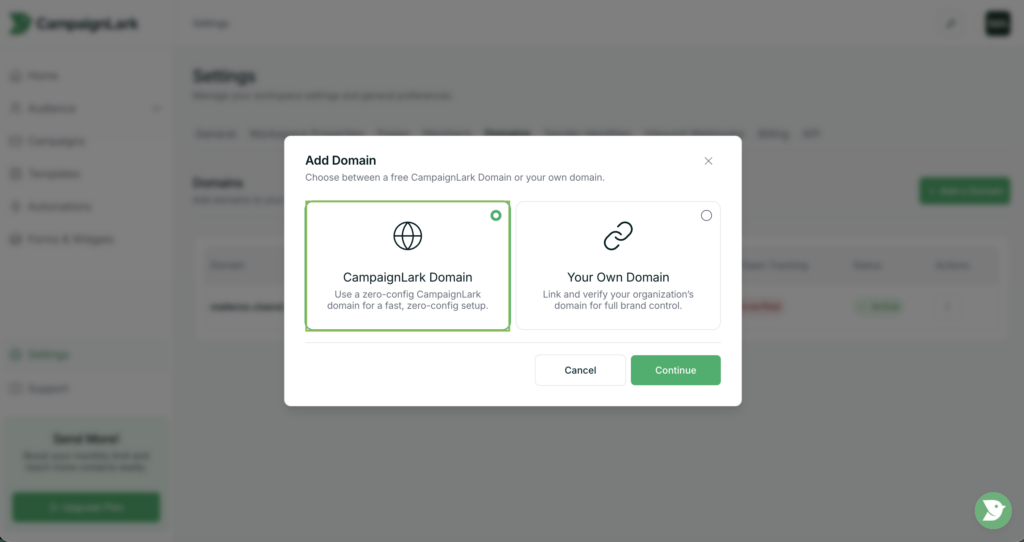
You will be presented with two options:
Add Your Own Domain – Connect and verify a domain that you already own.
CampaignLark Domain – Instantly create and use a CampaignLark managed domain.
For this guide, select CampaignLark Domain.
Creating Your CampaignLark Domain
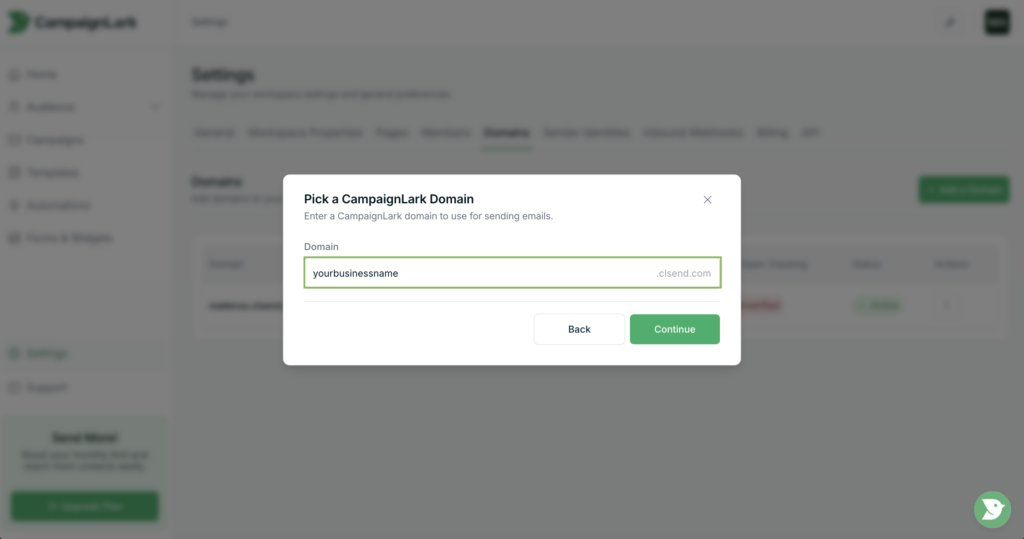
After selecting this option, a modal window will appear asking you to create your domain.
Choose a name that is relevant to your business, brand, or campaign activity. This domain will later be used as part of your sender identity, so it should be appropriate and representative of your organisation.
For example, you may choose something related to your company name or brand.
Once you have chosen your domain name, click Create.
Domain Activation
Your CampaignLark domain will be instantly activated and ready to use.
You can now proceed to create a sender identity using this domain and begin sending campaigns from your workspace.