
Once a campaign is completed, a report is automatically generated for it. You can access it by clicking View Report on any completed campaign from the Campaigns dashboard.
The report is split into four tabs: Overview, Content, Link Activity, and Email History.
Overview
This is the first thing you see when you open a report. It gives you a high-level summary of how your campaign performed through the following stats:
- Delivered – The number of emails that successfully reached your subscribers’ inboxes.
- Opened – How many subscribers opened the email.
- Clicked – How many subscribers clicked on a link inside the email.
- Bounced – Emails that could not be delivered, usually due to an invalid or inactive email address.
- Unsubscribed – Subscribers who opted out after receiving this campaign.
- Complained – Subscribers who marked the email as spam.
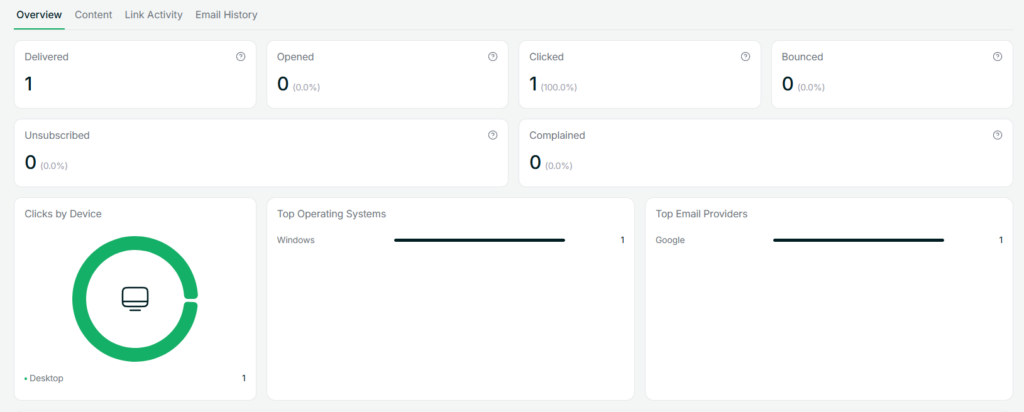
Below the stats, you will also find a Clicks by Device chart showing whether your subscribers clicked from a desktop or mobile device, along with Top Operating Systems and Top Email Providers to give you a better picture of your audience.
Content
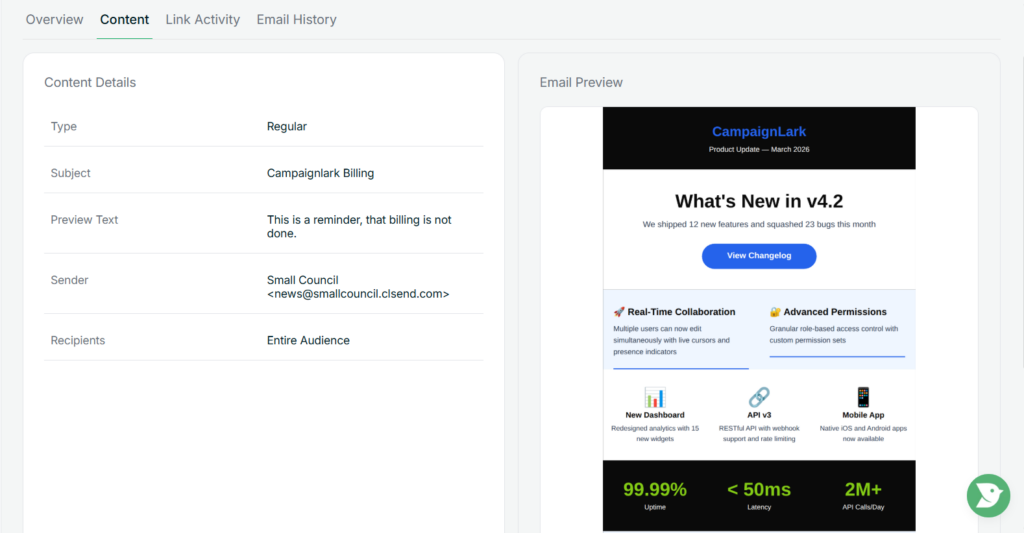
The Content tab gives you a summary of all the details you filled in when setting up the campaign, such as the campaign type, subject line, sender identity, and recipient settings. You can also see a full preview of the email on the right side.
Link Activity
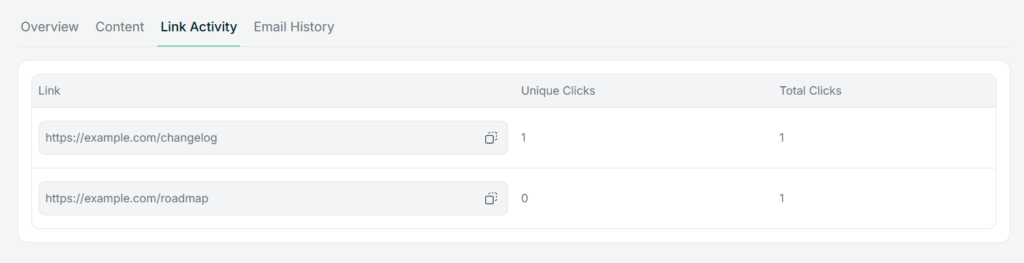
This tab shows you how each link inside your email performed. For every link, you can see the Unique Clicks, which counts each subscriber once regardless of how many times they clicked, and the Total Clicks, which counts every click including repeated ones from the same subscriber.
Email History
The Email History tab gives you a subscriber level view of how your campaign was received. You can see each subscriber’s email address along with when they first opened the email, when they first clicked, their total opens and clicks, and their delivery status.
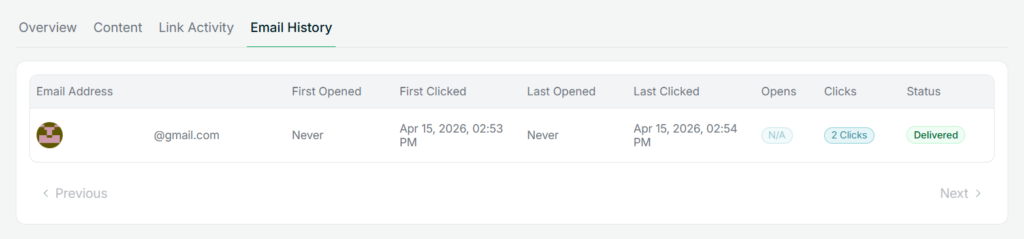
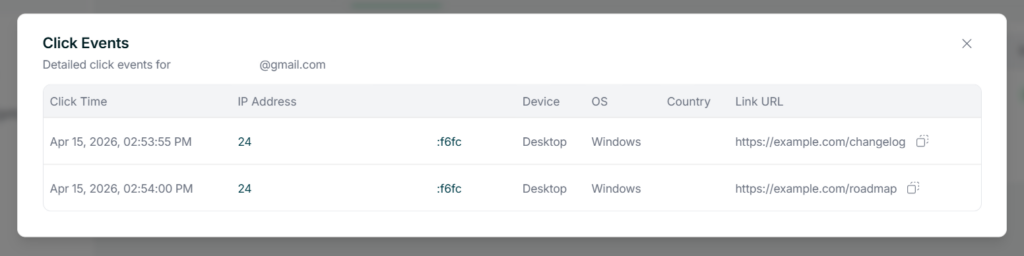
To dig deeper into a specific subscriber’s activity, click on the clicks pill next to their name. This opens a detailed view showing exactly when each click happened, which link was clicked, and what device, operating system, and country the click came from.
Tips
- A high click rate with a low open rate usually means your subject line could use some work.
- Use the Email History tab to spot subscribers who are consistently engaging with your campaigns.
- Link Activity is useful for understanding which parts of your email your subscribers find most interesting.