
Automations are a powerful feature that help you nurture subscribers and leads automatically. Once set up, they can run continuously in the background, performing actions based on events that occur within your workspace.
Automations can include multiple triggers, actions, delays, and conditions, allowing you to create powerful workflows tailored to your marketing needs.
Navigating to the Automations Editor
To create or edit an automation, navigate to the Automations tab located in the left sidebar navigation menu.
From here you can either create a new automation or edit an existing one.
If you already have an automation created, simply locate the automation you want to modify and click the Edit button.
This will open the automation editor.
Using the Automation Builder
CampaignLark uses a drag-and-drop automation editor, allowing you to visually build and manage your workflows.
You can drag different elements into the workflow to create an automation that matches your requirements.
Choosing a Trigger
Every automation must begin with a Trigger.
A trigger is the event that starts the automation. When this event occurs, the automation will begin running for that contact.
Available triggers include:
Contact Subscribed (Pending)
Contact Subscribed (Confirmed)
Contact Unsubscribed
Tag Added
Tag Removed
Segment Entered
Segment Exited
Field Updated
Date Anniversary
Specific Date
Custom Event
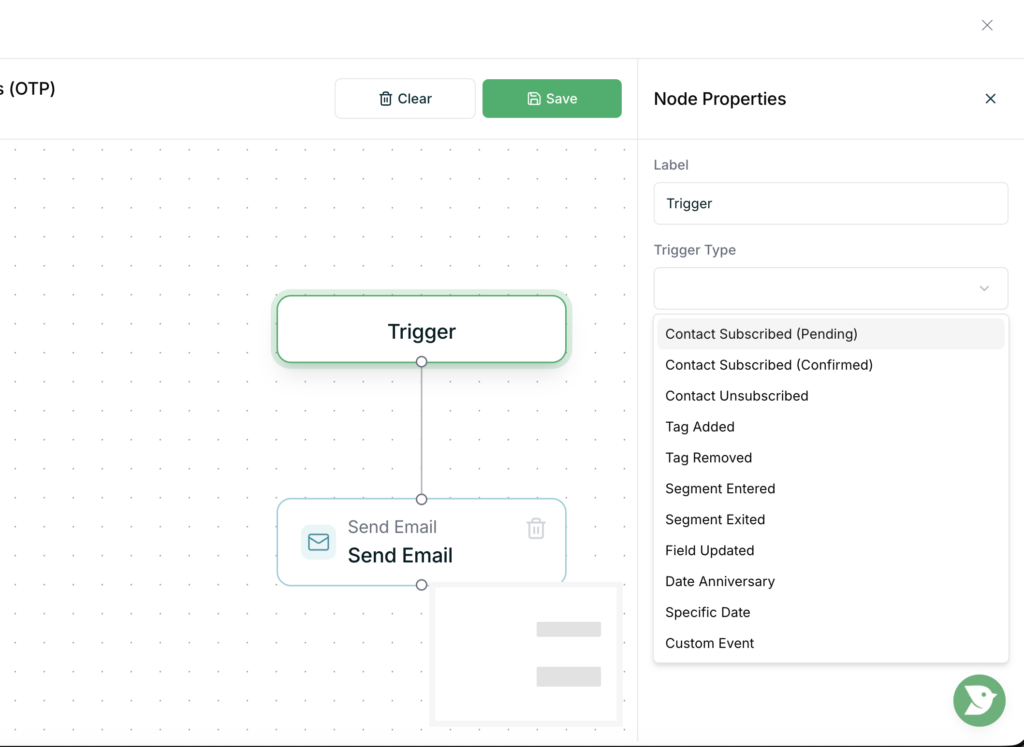
Once a trigger occurs, the automation will begin executing the actions that follow.
Adding Actions and Logic
After selecting a trigger, you can begin adding actions and logic steps to your automation.
Examples of actions include:
Send Email
Add Tag
Remove Tag
Update Fields
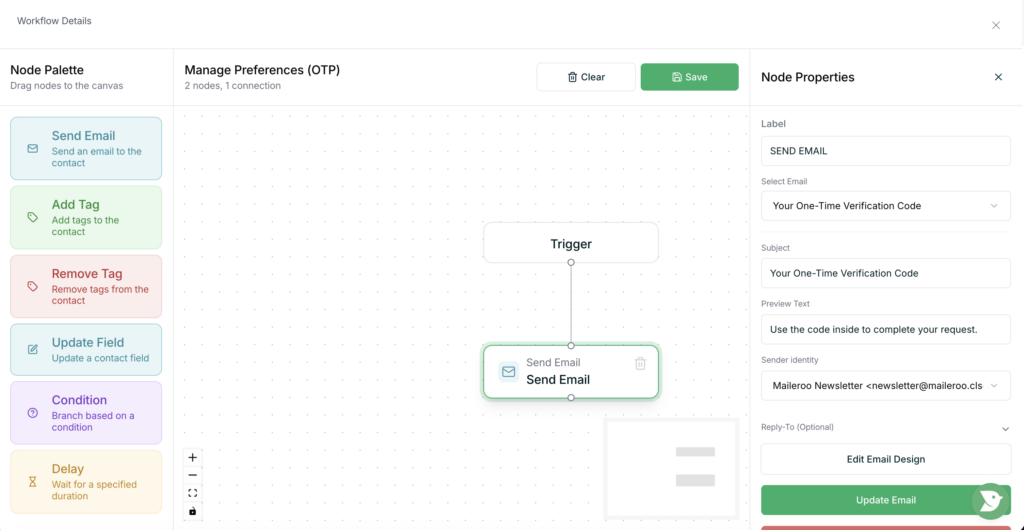
You can also add additional workflow controls such as time delays, conditions, and branching logic to create more advanced automation sequences.
These tools allow you to build sophisticated marketing flows that automatically respond to subscriber behaviour.
Editing and Expanding Automations
You can return to the automation editor at any time to modify triggers, adjust actions, or expand your workflow.
Once saved, your automation will continue running automatically whenever the defined trigger conditions are met.