
Segments are dynamic groups of contacts that are automatically updated based on conditions you define. When a contact meets the conditions of a segment, they are added to it. When they no longer do, they are removed. This means you always have an accurate, up-to-date group without having to manage it manually.
Creating a Segment
Navigate to Audience, click the three dots next to the Import Contacts button, and select Create Segment.

We have two ways to create a segment: Manual Builder, where you define the conditions yourself, and AI Assistant, where you describe your audience in plain text and we build the conditions for you.
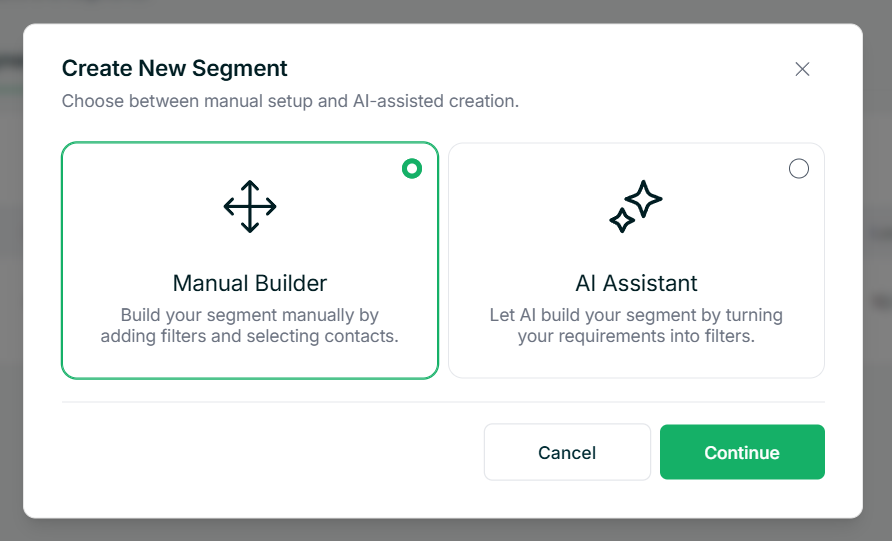
Manual Builder
Enter a Segment Name, then choose your Condition Type. With AND, a contact must match all conditions to be included. With OR, matching any one condition is enough.
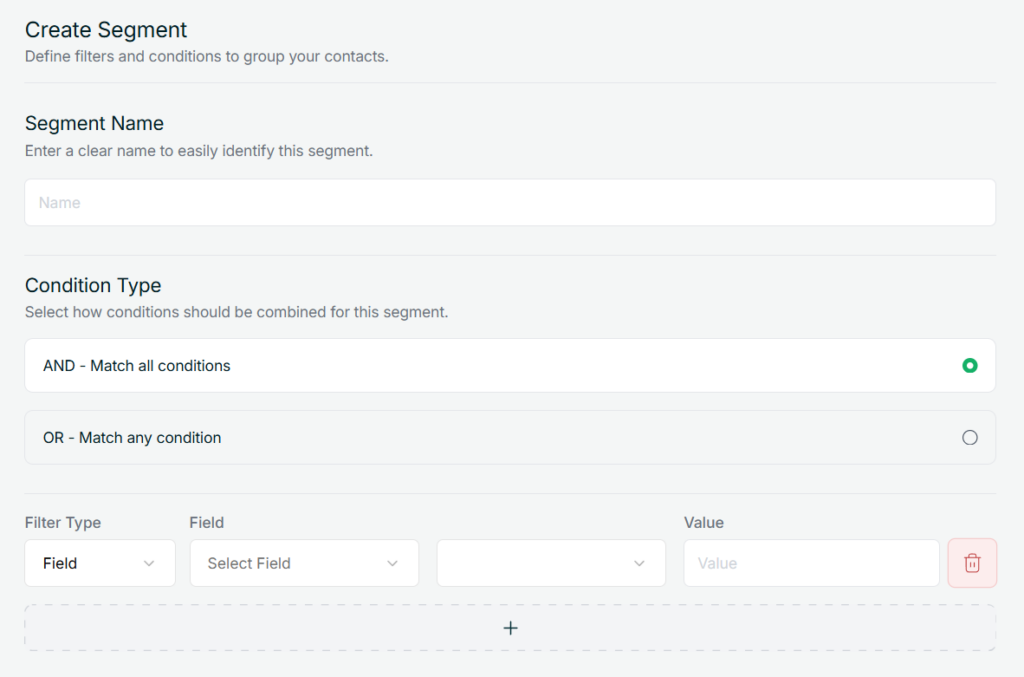
Next, add your conditions. Each condition works by picking a filter type, an operator, and a value. The filter type determines what you are comparing, such as a contact field, their tags, how often they open or click emails, or when they were last active.
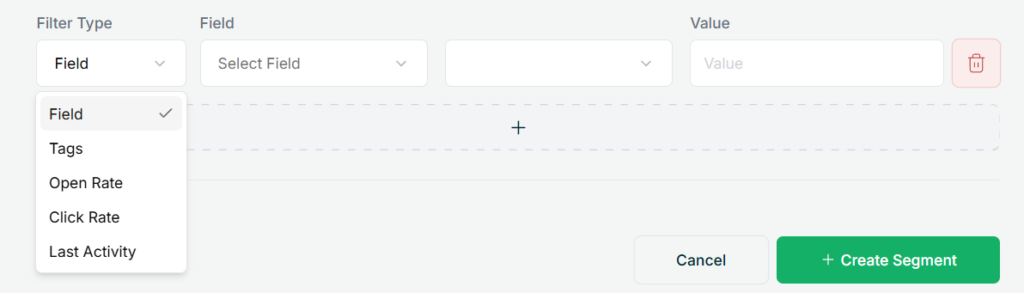
Depending on what you select, you will get different operators. Field conditions support options like “Equal to”, “Contains”, “Starts with”, and “In”.
Tag conditions let you filter by “Has exactly”, “Does not have”, “Contains any of”, and so on.
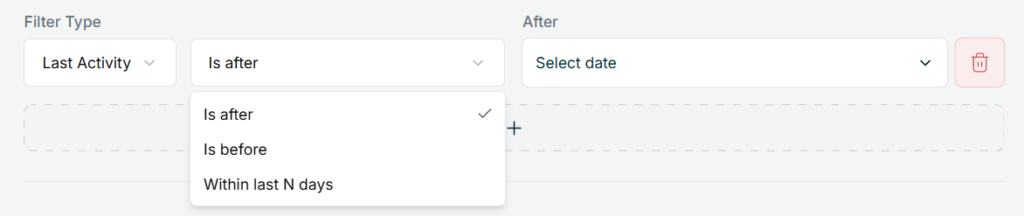
Open and Click Rate compare against a numeric value, while Last Activity filters by date using “Is after”, “Is before”, or “Within last N days”.
You can add multiple conditions using the + button. Once done, click + Create Segment.
AI Assistant
If you prefer not to build conditions manually, our AI Assistant lets you describe your target audience in plain text and automatically generates the conditions for you. Enter a Segment Name, describe who you want to target in the text field, and click Generate.
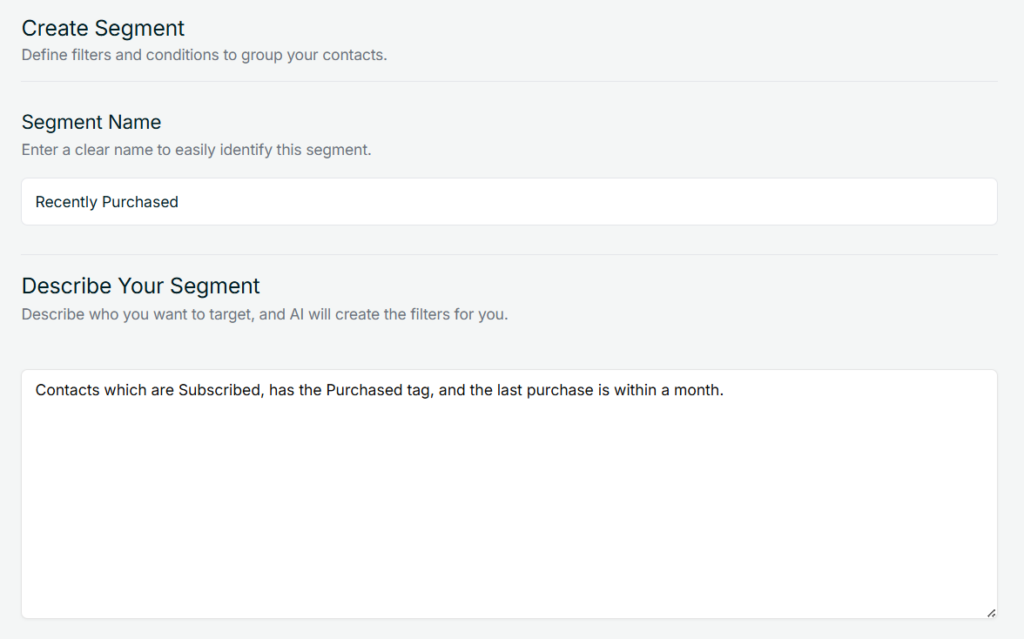
AI will interpret your description and automatically generate the matching conditions. You can review and adjust them before clicking + Create Segment.
Viewing a Segment
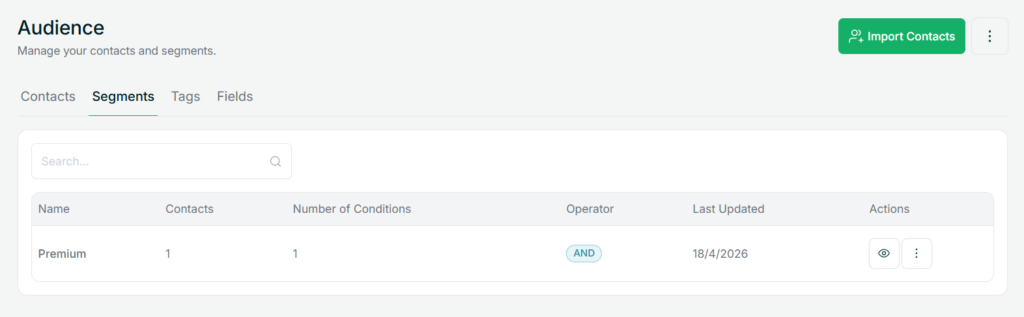
Once created, your segment appears in the Segments tab. You can see at a glance how many contacts are in it, how many conditions it has, and whether it uses AND or OR logic.
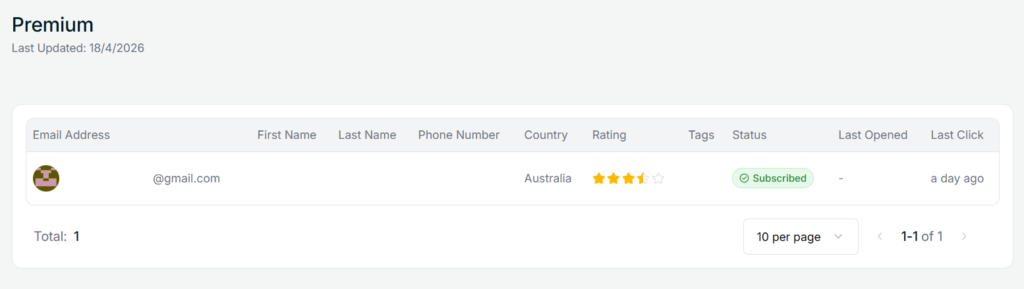
Click on any segment to open it and browse the full list of contacts that currently match.
Tips
- Segments update automatically, so you do not need to refresh or rebuild them after creating them.
- Use OR when you want a broader audience, and AND when you need a very specific group.