
By default, every contact in your workspace has a standard set of fields: Email Address, First Name, Last Name, Phone Number, and Country. Depending on your use case, you may want to store additional information against your contacts, such as a subscription plan, date of birth, or any other data relevant to your audience. Custom fields let you do exactly that.
Navigate to Audience and click the Fields tab. Here you can see all existing fields in your workspace. Email Address is always required and cannot be edited or deleted. The other default fields can be edited or removed if you do not need them.
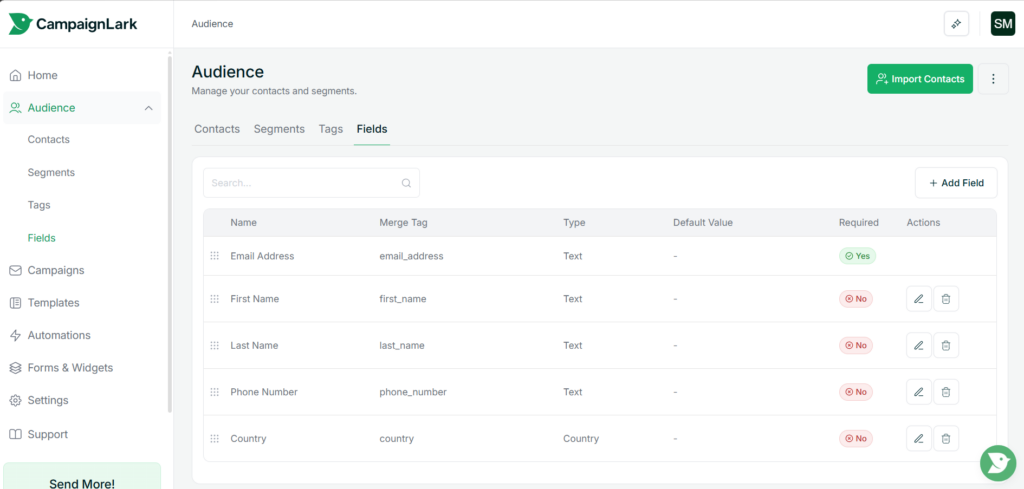
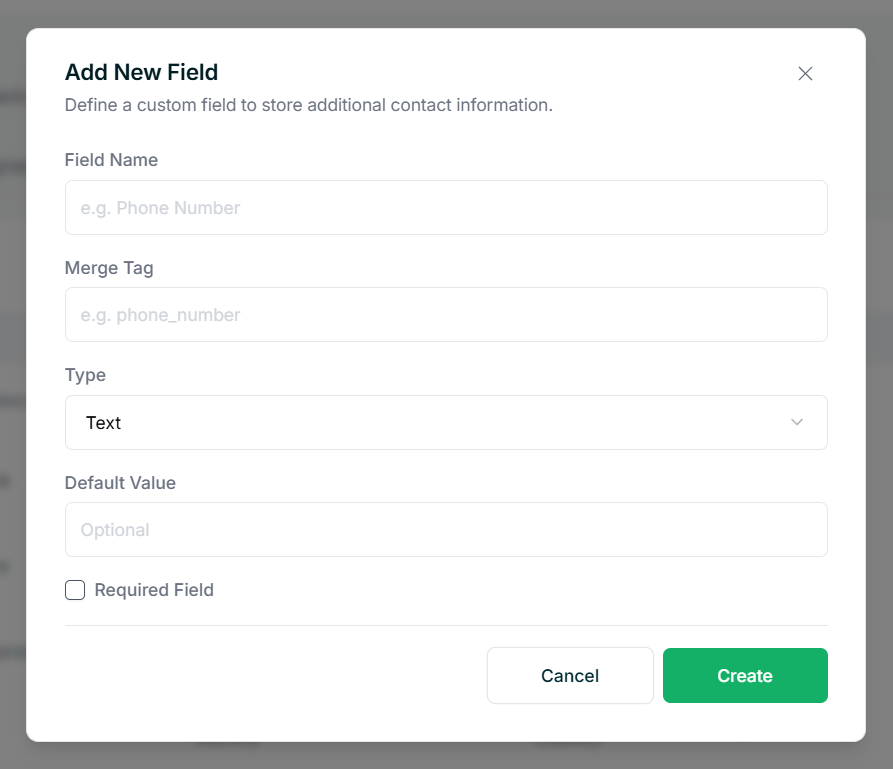
To add a new field, click + Add Field. You will need to fill in the following:
- Field Name — The display name for this field.
- Merge Tag — A unique identifier used to reference this field in emails and imports. It is generated automatically from the field name but you can customize it.
- Type — The kind of data this field stores. We support Text, Number, Date, Country, Boolean, Dropdown Single, and Dropdown Multiple.
- Default Value — Optionally set a fallback value that will be used if this field is empty when a contact is created.
- Required Field — If checked, this field must be filled in whenever a contact is added manually or through a form.
Once created, the field will show up throughout your workspace wherever contact data is involved, such as when adding contacts manually, building segments, setting up forms, or mapping fields during an import.
Tips
- Merge Tags let you reference this field’s value inside your emails, useful for inserting things like a contact’s plan name or company directly into your content.
- Marking a field as required means it will need to be filled in every time a contact is added, whether manually or through a form, so only do this if the field is essential.