
A trigger is the event that starts an automation. When that event occurs for a contact, the automation begins running for them and executes whatever steps you have set up. Choosing the right trigger is important because it determines exactly when and for whom your automation fires.
Available Triggers
We offer a range of triggers to cover different points in the subscriber journey and beyond.
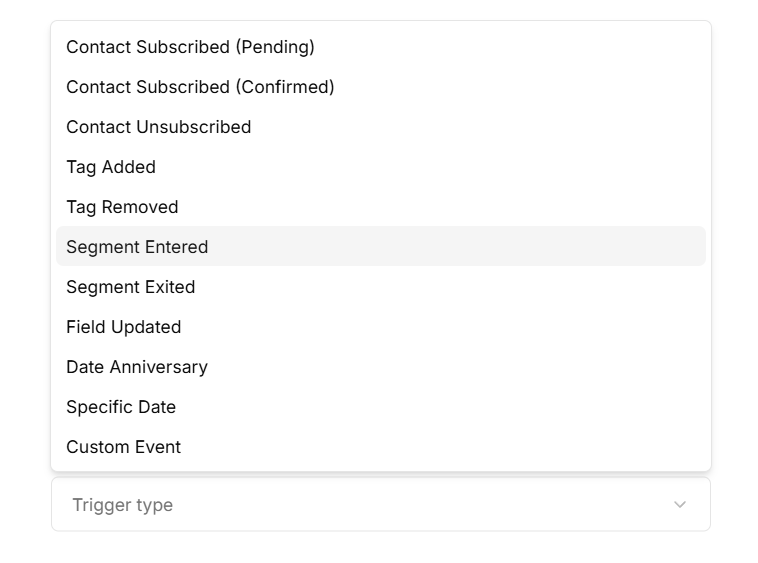
Contact Subscribed (Pending) activates when a new contact is added with an unconfirmed status. This can happen through the website, a form, the API, or an inbound webhook. When this happens, our system automatically sends them an Opt-In Confirmation Email (this does not count towards your billing).
Contact Subscribed (Confirmed) runs after the contact clicks the confirmation link in the email we send them, completing their subscription. This is the right trigger for welcome emails or any communication you want to send once someone is fully opted in.
Contact Unsubscribed fires when a contact clicks the unsubscribe link in any email. This can be useful for internal workflows such as updating a field or removing a tag when someone opts out.
Tag Added and Tag Removed activate when a specific tag is applied to or removed from a contact. When setting up this trigger, you choose which tag it should be based on, so the automation only fires for that particular tag change.
Segment Entered and Segment Exited trigger when a contact meets or no longer meets the conditions of a segment. You select which segment to watch, giving you control over exactly which audience movement starts the automation.
Field Updated runs when a contact field is changed, either through the platform or the API. This is useful when you want to react to a data change, such as a contact updating their preferences or a field being set by an external system.
Date Anniversary fires every year on a recurring date stored in a contact’s field, such as a birthday or signup anniversary.
Specific Date triggers once on an exact date stored in a contact’s field. Unlike Date Anniversary, this does not repeat.
Custom Event starts an automation based on an event you send to CampaignLark from outside the platform. This lets you trigger automations from actions happening in your own product or system. You can explore the available configurations in the Custom Event API documentation.
Tips
- Date Anniversary and Specific Date both rely on a date value stored in a contact field, so make sure that field is populated for the contacts you want to target.
- Custom Event is the most flexible trigger available and is worth exploring if you want your automations to respond to activity happening outside of CampaignLark.