
Every workspace in CampaignLark comes with its own customizable unsubscribe page.
This page is shown to recipients when they click the unsubscribe link included by default in your emails.
You can fully customize this page to match your brand, messaging, and design preferences.
Navigating to the Page Editor
To access your unsubscribe page, navigate to Settings using the left sidebar navigation menu inside your workspace.
Once inside Settings, click on the Pages tab.
Here you will see a list of system pages that can be customized.
Locate the Unsubscribe & Feedback page and click Edit.
Customizing the Page
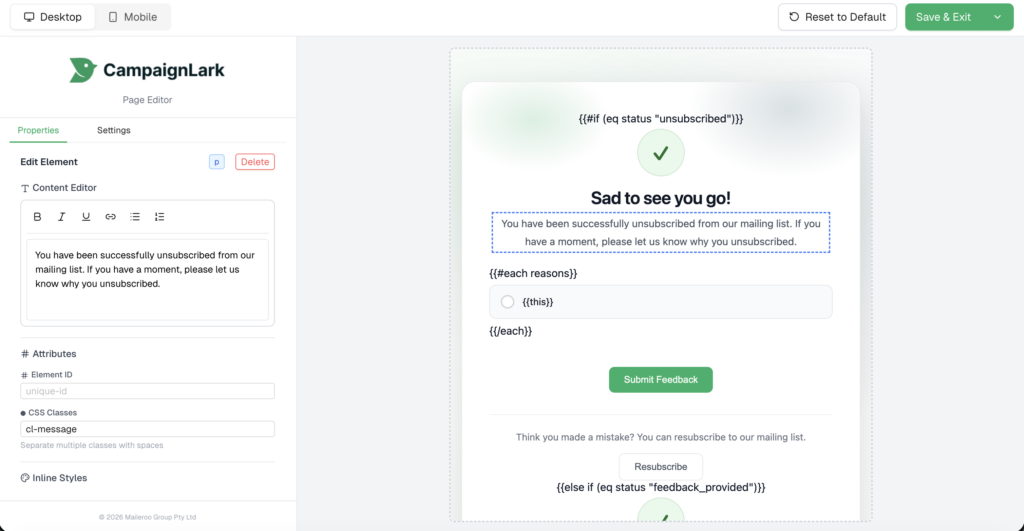
Clicking Edit will open the page editor, where you can modify the layout and content of the unsubscribe page.
Within the editor, you can:
Edit text to match your tone and messaging
Adjust styling to match your brand guidelines
Modify elements such as headers, paragraphs, icons, and buttons
Simply click on any element to adjust its content or style.
Understanding Conditional Elements
You may notice elements containing double curly brackets such as {{ }}.
These are used for conditional rendering, which means different content may appear depending on the action the recipient takes or the outcome of their unsubscribe request.
If you are unfamiliar with how these work, it is recommended not to modify these elements, as they control important functionality on the page. Please do not edit these as it may break the template and flow for your recipients.
You can safely customize the visual elements around them while leaving the conditional logic intact.