
Exporting your contacts lets you download your audience as a CSV file, which you can use to back up your data, share with your team, or analyze in a spreadsheet.
To start, navigate to Audience, click the three dots next to the Import Contacts button, and select Export.

A dialog will appear where you can configure what gets exported. Select the Fields to Export to choose which contact fields you want included in the file. You can also optionally filter the export by Tags or Status if you only want a specific subset of your contacts rather than your full list.
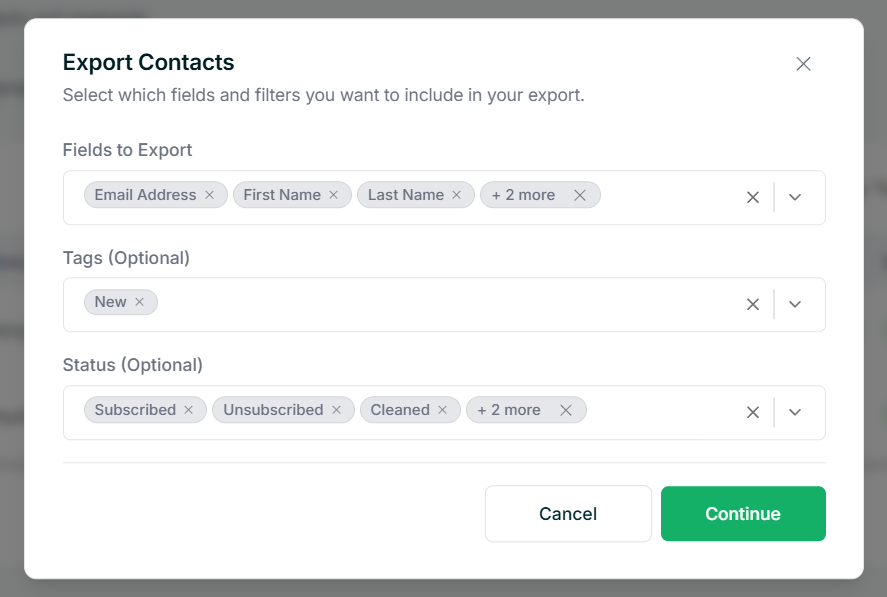
Once you click Continue, we will process the export in the background. Depending on the size of your contact list, this may take a little time. When it is ready, we will send the CSV file to your email along with a summary of how many contacts were exported.
Keep in mind that the download link in the email expires after 72 hours, so make sure to download it promptly.
Tips
- If you only want to export a specific group of contacts, use the Tags or Status filters to narrow down your export before continuing.
- Make sure to select all the fields you need before exporting, as you will have to trigger a new export if you miss any.