
You can search and filter your contacts from the Contacts tab under Audience. This is useful when you are looking for a specific contact or want to narrow down your list based on certain criteria.
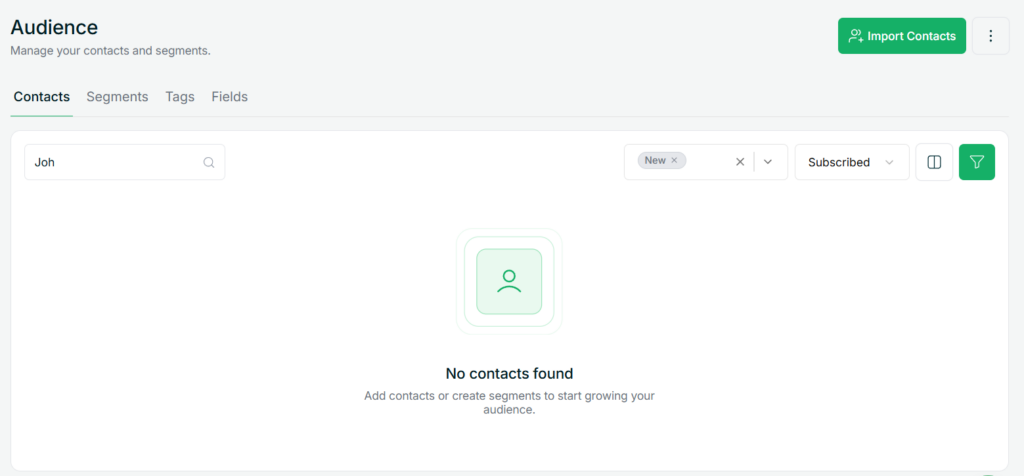
The search bar at the top lets you find contacts by name or email. Just start typing and the list will update as you go. For quick filtering, you can use the Filter by Tags and Filter by Status dropdowns at the top right to narrow down contacts without any extra steps.

For more specific filtering, click the Filter button on the right. This opens a panel where you can build conditions based on any contact field. Each condition requires you to select a Field, an operator such as “equals” or “contains”, and a Value. You can add multiple conditions using the + button, and you can also filter by Tags within this panel.
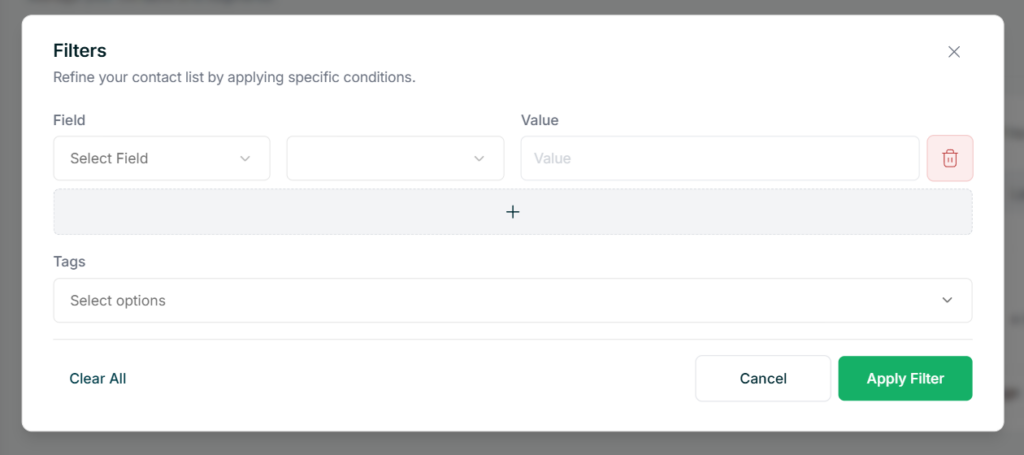
Once done, click Apply Filter to apply your filters, or Clear All to reset them. When multiple conditions are applied, only contacts matching all of them will be shown. If no contacts match your conditions, the list will show no results.
Tips
- Combine field conditions with tag or status filters to get very specific views of your audience.
- If you find yourself applying the same filters repeatedly, consider creating a Segment instead.