
Once you have created and configured your form, you can add it to any website by pasting a small code snippet onto your page. We generate this code for you automatically in the Publish tab.
Getting the Embed Code
- Open the form you want to embed from Forms & Widgets.
- Go to the Publish tab in the left panel.
- Click Copy Embed Code.
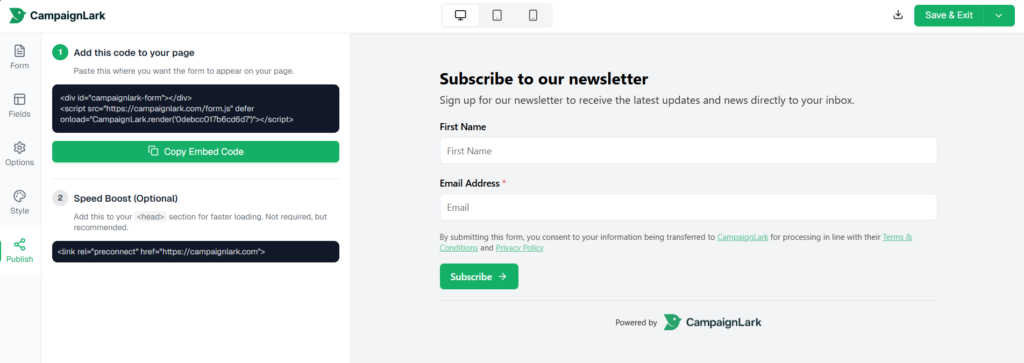
Adding It to Your Website
Paste the embed code into your page’s HTML at the exact spot where you want the form to appear. The form will render inline at that position, so if you paste it in the middle of a page, it will show up there.
If you are using a website builder, look for an option to add a custom HTML or code block, paste the embed code inside it, and save your page. Most modern website builders support this.
Speed Boost
The Publish tab also includes a Speed Boost snippet. Paste this into the <head> section of your website to allow the form to load faster. It is not required, but recommended.
Tips
- Each form has its own unique embed code. If you have multiple forms, make sure you are using the right code for each page.
- If your form is not showing up after embedding, make sure the code was pasted in full and is not broken by any surrounding elements on the page.